After a terminal investigation, the next step is often uploading a small directory or editing a configuration file. Switching applications can make it easier to lose track of the host or destination. Docklark’s file panel and remote editor keep those tasks near the terminal, but connection identity, transfer results and saved changes still need separate checks.
Confirm the file panel’s host first
The embedded SFTP panel can browse local and remote directories or detach into its own window. It reuses an authenticated SSH connection and requires an allowed SFTP v3 subsystem on the server.
For an ordinary connection or a menu-based bastion session, the panel addresses the SSH entry host. Running another ssh command inside the terminal, or choosing an asset from a JumpServer menu, does not automatically retarget it. A managed jump chain uses the final authenticated target. Check the panel’s host before checking the path.
Let the queue schedule work, not choose your deployment strategy
The queue supports one to five concurrent files, with three as the default. Files inside folders share those slots. Overlapping paths run in order, and cancellation is available at task level. Queue actions also allow retries, revealing files, copying results and removing completed records.
An existing destination is not silently overwritten or merged: conflicting names receive a new name. That helps prevent accidental replacement, but it also means that a successful upload is not proof that your application is using the new configuration. Inspect the resulting filename and the path the service actually reads.
Regular files, hidden files and empty directories are supported. Symbolic links and device files are not followed, and directory deletion is limited to empty folders. This is not cross-connection resume support. Performance measured against a local demonstration endpoint should not be treated as a promise about your network.
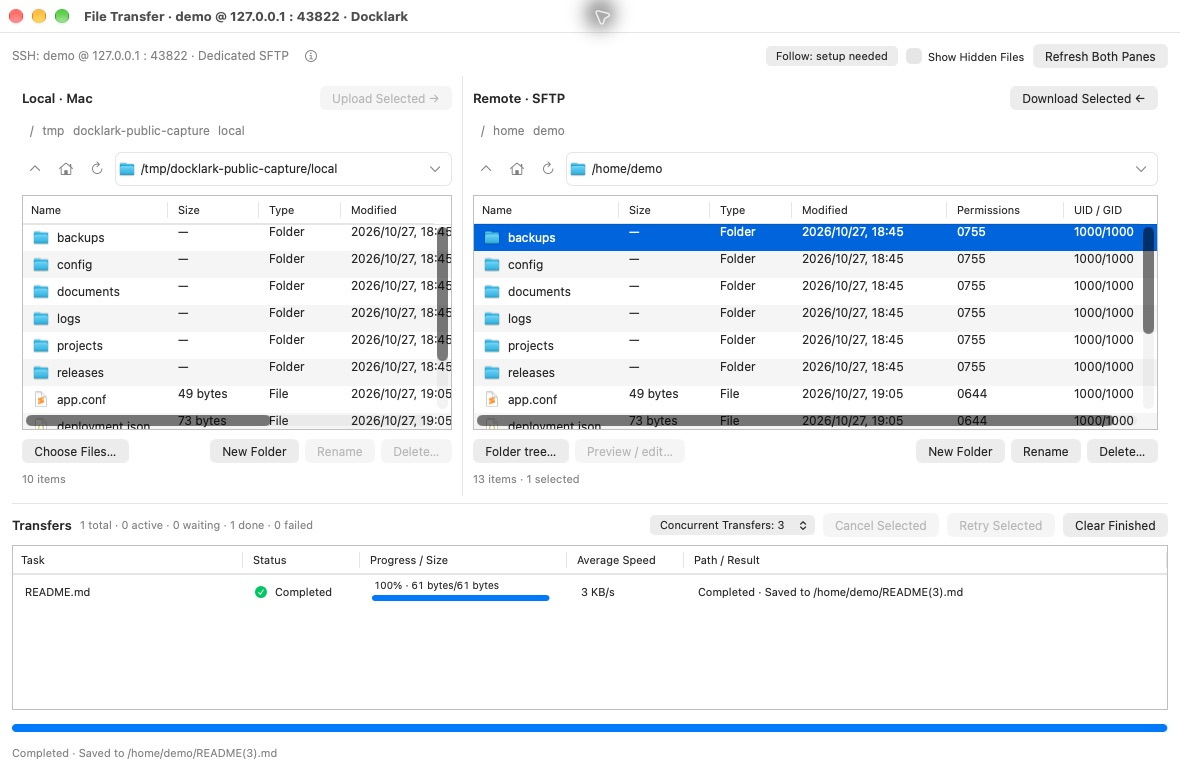
The standalone SFTP window shows local and remote folders, concurrency controls and the transfer queue. The pictured transfer is a local demonstration only.
Make the save preview part of the edit
The remote text editor provides logical line numbers, find and replace, go-to-line and a diff before saving. It checks for remote changes and preserves supported encodings. Keep each edit focused, then use the diff to look for unintended changes around the lines you meant to alter.
Text editing is limited to 2 MiB. Servers without atomic replacement offer Save As, so a separate file-replacement procedure may still be needed. After disconnection, unsaved drafts remain available as read-only text for copying. Their presence does not mean anything was saved remotely.
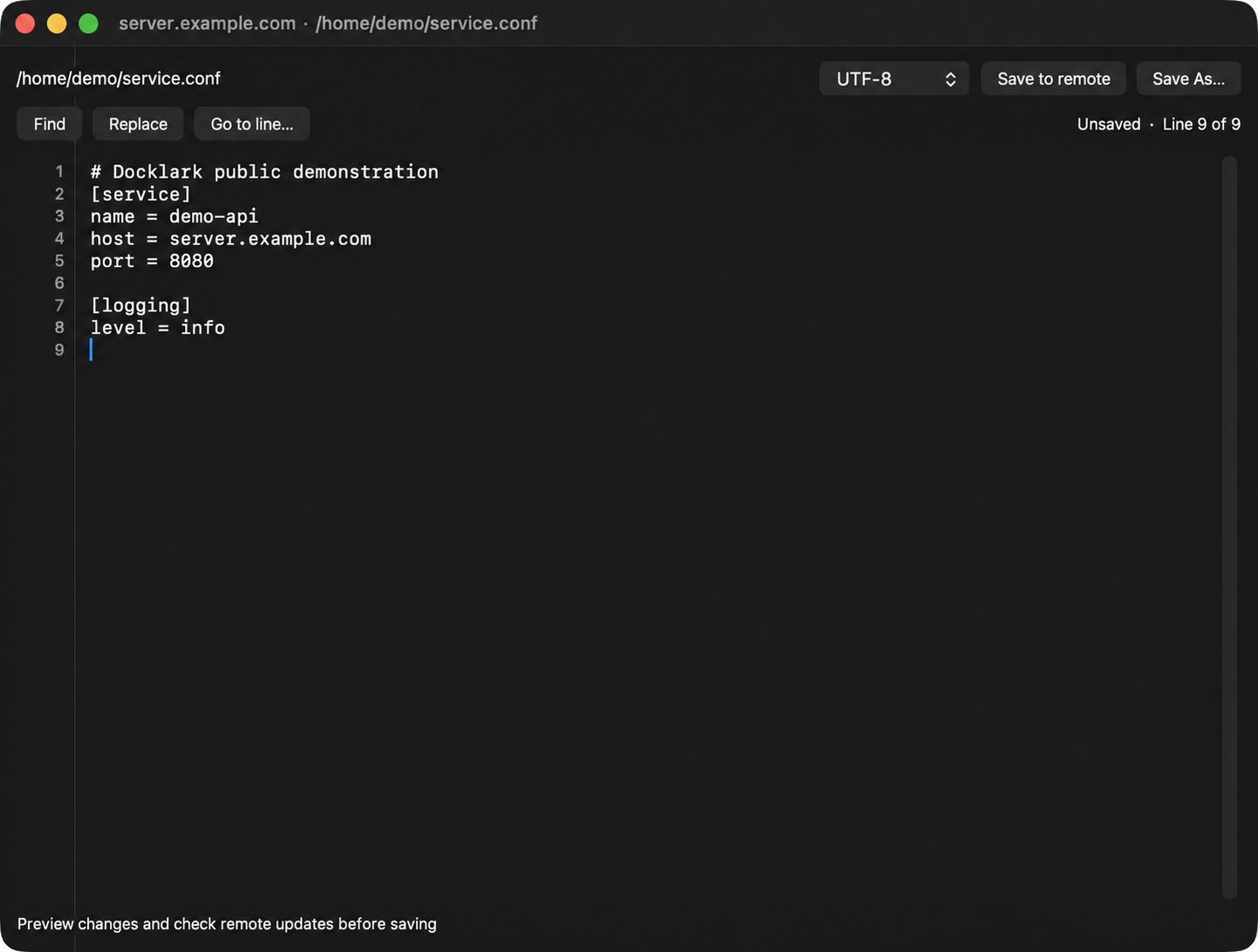
The remote text editor provides line numbers, find, replace and go-to-line controls. This demo configuration is shown before saving.
A saved file is only one stage of the change
Writing a file, reloading a service and checking the result are different operations. A successful save does not validate application syntax or establish that a service has adopted the new settings. Preserve the original, use the application’s own validation method and follow your maintenance procedure before reloading.
This guide uses the official description reviewed against installed v0.2.96. That review covered file browsing and editor previews; it is not complete acceptance of writes, interruption handling or every server implementation.
Read more: SFTP and remote editing and the SFTP overview.