Having CPU charts, process lists and container status beside a terminal can reduce switching between tools. With bastions or nested SSH sessions, however, the first question should be which host supplied the data, not why a graph is high. Docklark’s monitoring and tool center are most useful when that identity stays clear.
The connection defines the target
For ordinary connections and menu-based bastion sessions, monitoring and auxiliary tools address the SSH entry host. A nested ssh command, a changed shell prompt or an asset selected from a terminal menu does not automatically retarget them.
A managed SSH jump chain uses the final authenticated host. Compare the session and tool target before acting, especially when an entry server and a business server have similar names. A process or container visible in the tool center belongs to that authenticated target, not necessarily the machine you last typed about in the terminal.
Read the trend before choosing an action
The resource panel covers CPU, memory, swap, network rates and disk space. Detailed views include Top 5 processes and one-, five- and fifteen-minute history charts. Trends help show whether something changed during an investigation; a single sample rarely explains the cause on its own.
The default refresh interval is five seconds. Presets, a one-to-3,600-second setting and pause controls let you adjust collection. Failed refreshes mark data as stale, so check freshness before drawing conclusions. Connected sessions continue collecting in the background, with the panel hidden and during transfers. Choose an interval that suits the number of connections and the task.
Collectors use an independent SSH command channel without requiring a remote agent or sudo. The server still needs to allow the relevant execution. macOS memory figures are explicitly estimates, and real remote-macOS measurements and complete server compatibility remain under validation.
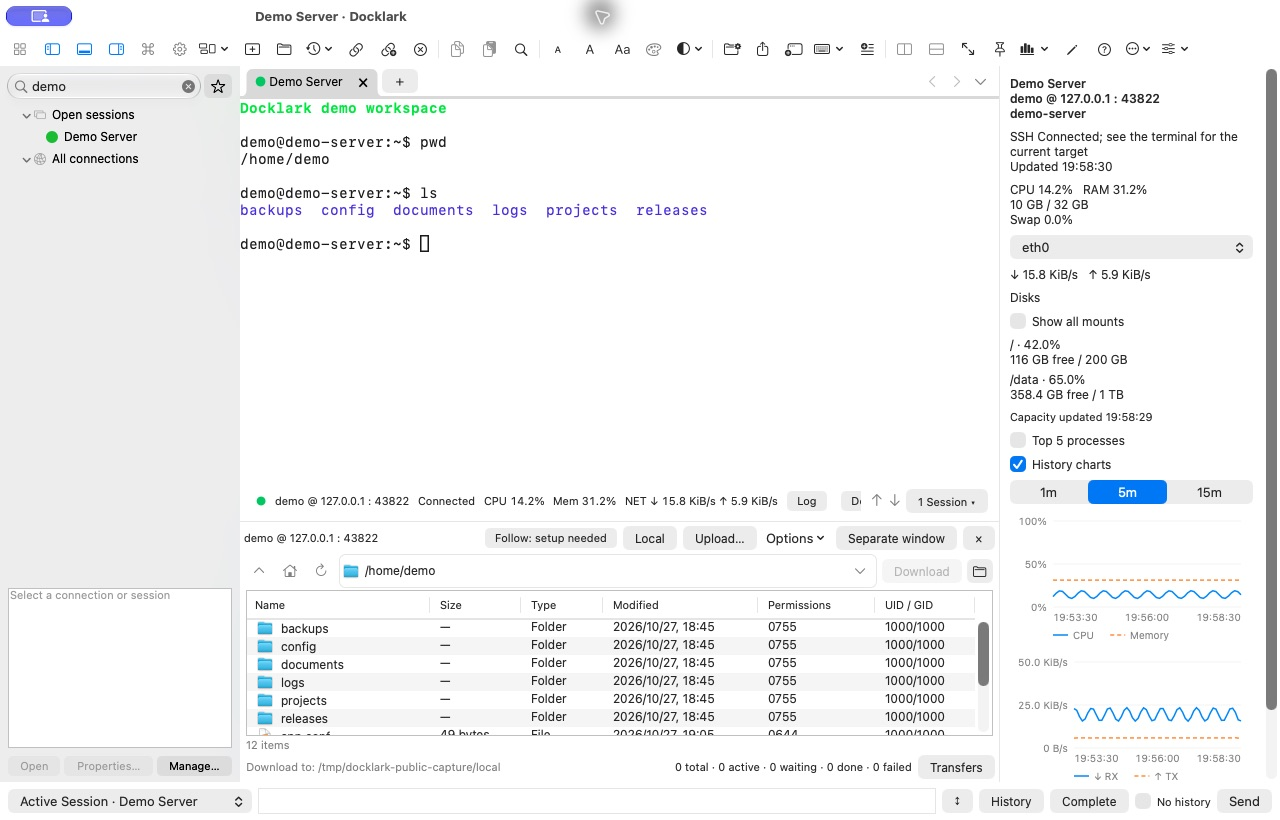
The resource sidebar shows CPU, memory, disks and history beside the terminal. Check the host identity before interpreting the metrics. Data comes from a local demo environment.
Move from observation to tools deliberately
The multi-host overview offers tables or cards and routes into a session’s terminal, resources, files or other tools. Process tools provide search and details, with confirmation for termination. Container tools expose status, ports, supported metrics, recent logs and a separate container terminal, alongside start, stop and restart controls.
Those controls do not grant remote permissions. Container capabilities depend on the Docker installation and the account’s access. Inspect metrics and logs, confirm the object and its impact, then decide whether a change is justified. High resource use alone is not proof that a process should be terminated.
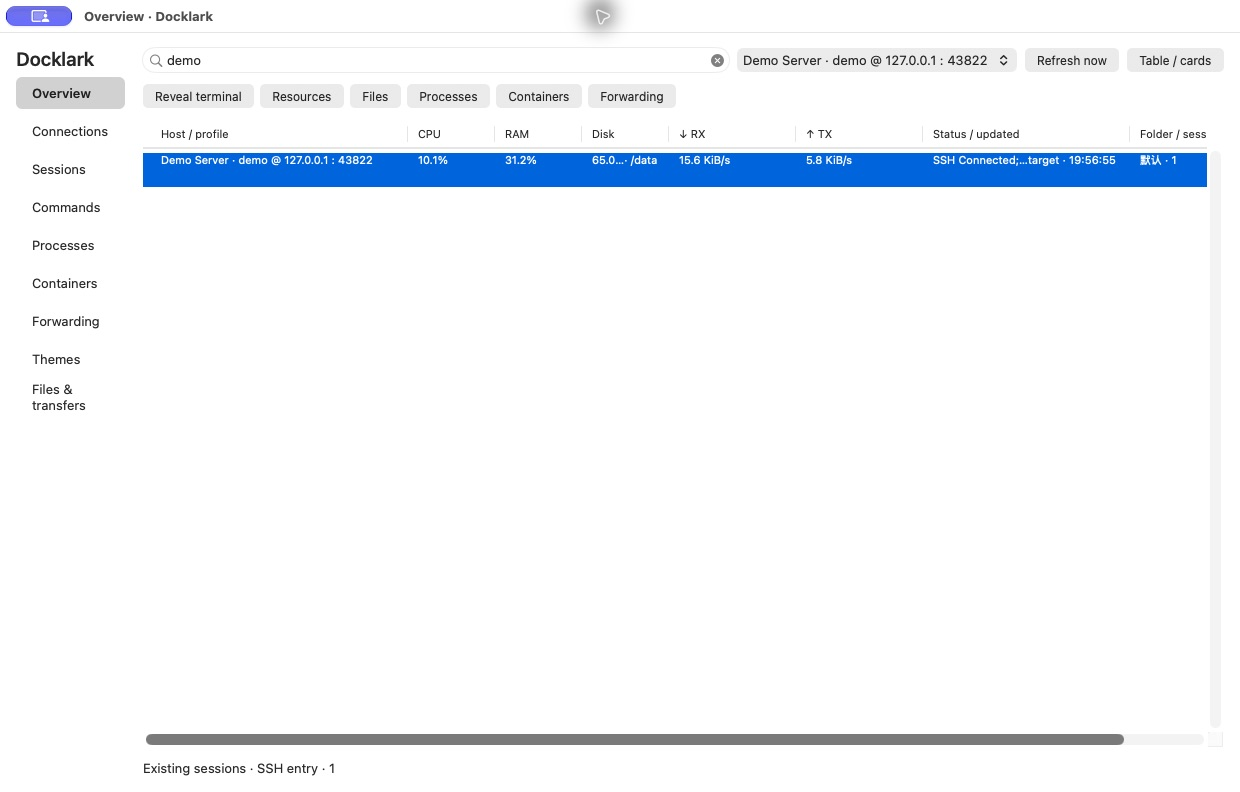
The tool center links existing sessions to resources, files, processes, containers and forwarding tools. The capture shows navigation and demonstration metrics only.
Keep the operational boundary clear
These tools support immediate observation during a connected session. They should not be mistaken for long-term monitoring storage, capacity reporting or a complete alerting platform. Record relevant findings in your existing operational process so observation leads to a traceable decision and follow-up.
This guide uses the official description reviewed against installed v0.2.96. The published review inspected lists and relevant screens; it does not certify process termination, container changes or every remote environment.
Read more: resource monitoring and the tool center.