When several servers are open at once, the difficult part is rarely opening another terminal. It is staying certain about which machine you are looking at and where the next command will go. Docklark’s documented workspace features bring connection organization, split panes and a shared command bar into one workflow.
Organize the task before arranging the screen
The connection library supports nested folders, colors, favorites and search. Start by separating environments or tasks, then arrange the windows. Production and test connections should be visibly different rather than distinguished only by similar host names.
Within the workspace, you can move tabs, create horizontal or vertical splits, resize dividers and move a session to another window. Splits work well for side-by-side observation: one pane can show service output while another is used to check status. Separate windows help keep unrelated tasks apart. Neither layout removes the need for clear connection names.
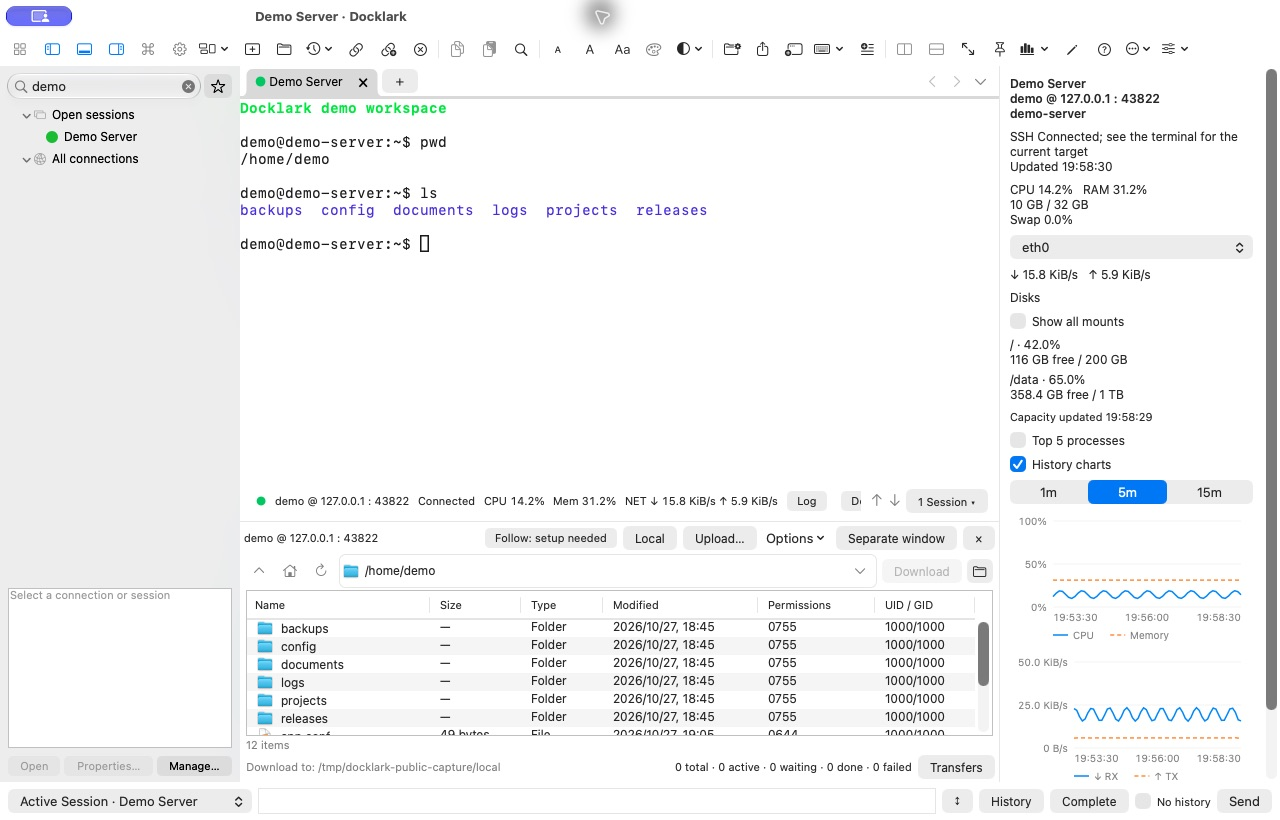
The operations workspace brings the terminal, file panel and resource history into one window. Public demo data is shown.
Treat the command bar as a recipient-aware tool
The shared command bar can target the active session, SSH sessions in the window, or selected sessions. Its recipient picker shows group and session counts, window origins and unavailable targets. Selected terminals and tabs are highlighted as well.
Before sending, check the destination, the current connection state and whether the command makes sense on every selected host. A harmless query is a better first test of scope than a service change. Window-wide scopes cover SSH sessions, not local shells.
In the composer, Enter sends and Shift+Enter inserts a newline. Moving between split panes should not be treated as proof that an existing draft’s recipients have changed. Read the recipient display before sending. Multi-session delivery is not an atomic transaction: servers may respond differently, and an operation already executed on one host is not automatically rolled back if another host fails.
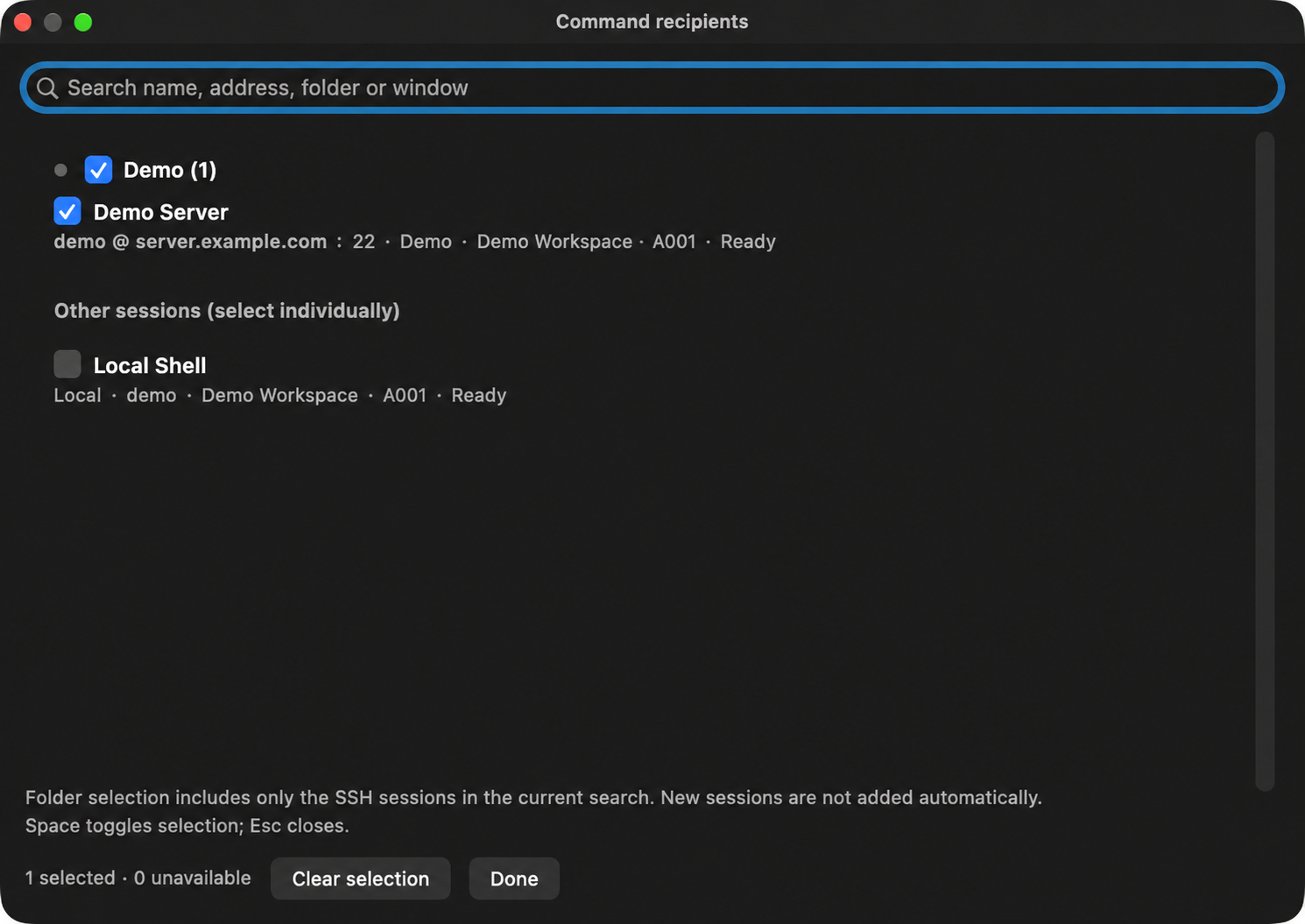
Check command recipients before sending: SSH sessions and local terminals are listed separately, and folder selection does not automatically include sessions opened later.
Reuse commands without skipping the review
Quick commands support groups, ordering and parameter placeholders. With the composer focused, they can fill a draft for review. With a terminal focused, the configured send action applies. Knowing which control has focus matters as much as knowing which command you selected.
Commands explicitly marked dangerous request confirmation. That is a useful extra checkpoint, not a promise that every potentially destructive command will be recognized. Review deletion, permission and service-changing operations against the actual target and your recovery plan.
A saved workspace is a layout, not a running-state backup
Named workspaces can restore a multi-window arrangement after restart, with sessions waiting for a manual connection. They do not include terminal output, drafts or passwords. Think of them as reusable desk layouts rather than recordings of a live session.
A sensible routine is to restore the layout, confirm connection identities, choose recipients, run a read-only check and then make the necessary change. The workspace saves navigation effort; it does not replace operational judgment.
This guide follows the official feature description reviewed against installed v0.2.96. A later version number alone is not evidence of when a feature first shipped or of acceptance in every environment.
Read more: workspaces and command targets and documentation.