Finding an error that has already appeared is different from noticing whether it happens again. Docklark’s documented terminal search, persistent highlighting and output alerts address those different needs. Used together carefully, they can make a busy terminal easier to read without turning every line into a colored warning.
Find a result before broadening the search
Terminal search can cover the current tab or the current window, including its split panes. It supports case matching, regular expressions and wrap-around navigation. Inline and separate find views retain the query, options, scope and position when switching between them.
Start with a distinctive error phrase or request identifier, then widen the scope if needed. New output updates the available matches, while unrelated incoming lines preserve the current result rather than continually pulling attention away from it.
The important boundary is retention. Search covers output still retained in the terminal, not unlimited history or a remote server’s log archive. An absent result may mean the relevant text is no longer available locally. It is not evidence that an event never happened.
Use highlighting as a reading aid
Persistent rules can match text or regular expressions and set foreground and background colors. A preview helps evaluate the result before applying a rule set globally, to a connection or to a single session. Rules have an order, so keep the set small and intentional.
Begin with a few specific patterns rather than broad expressions that color ordinary output. Observe false matches before widening the rules. Highlighting changes presentation only: copied text and logs preserve the original content. Find results and mouse selection also take visual priority over persistent colors.
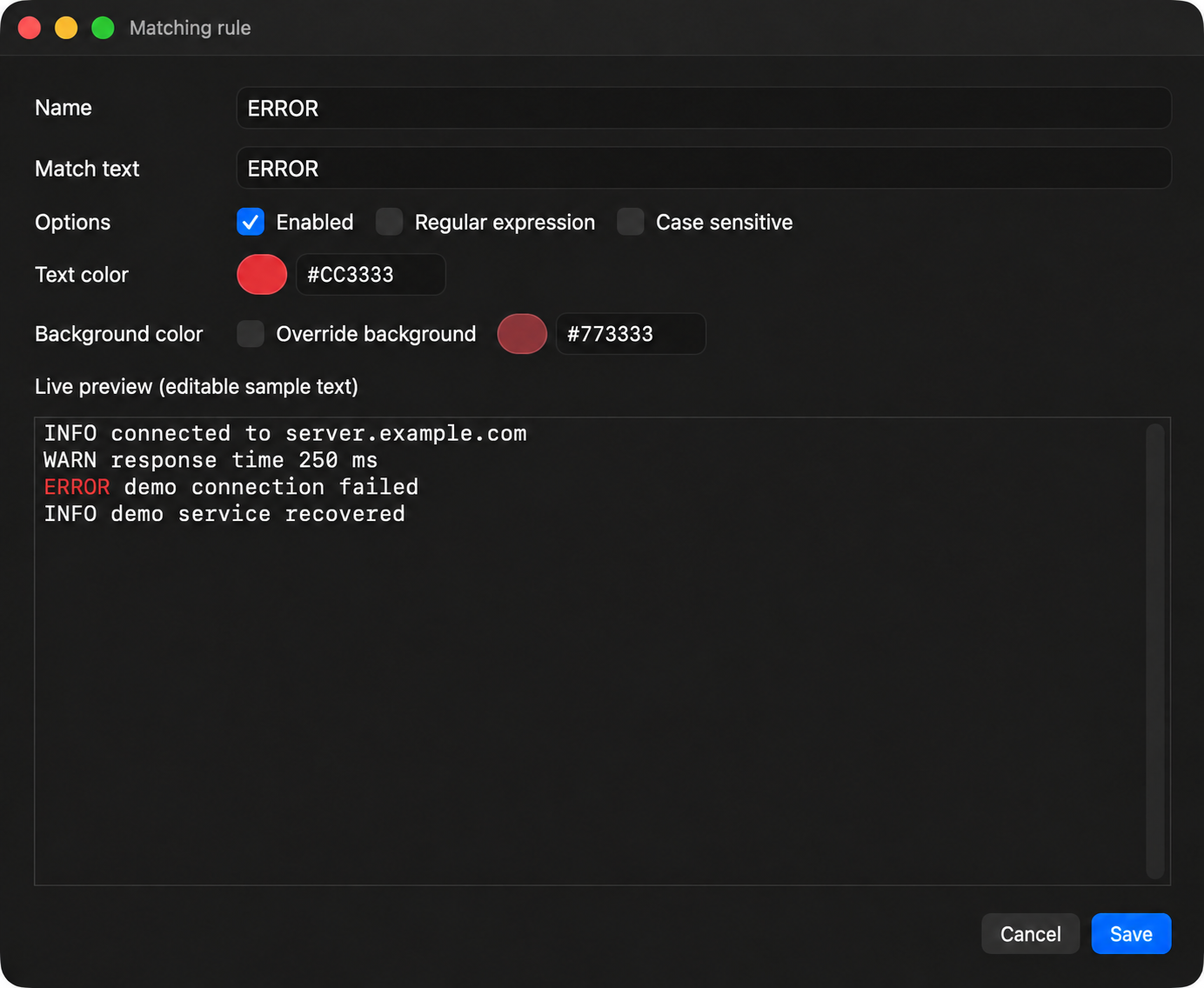
Highlight rules support text or regular-expression matching, with a color preview before saving. The ERROR rule and log lines are examples.
Let alerts attract attention, not make decisions
Output alerts can mark a session when a text or regular-expression rule matches. Optional system notifications and a cooldown can help with repetitive output. Notifications contain the session and rule names rather than the matched terminal text. Alerts do not send commands.
A cooldown reduces repeated interruptions; it does not establish the importance of an event. Return to the session and read the surrounding output before responding. Likewise, silence is not a health check. The output may not have matched a rule you configured.
System notifications require macOS permission and are optional. They are not a replacement for centralized logs, server-side monitoring or an on-call escalation system, particularly when you need monitoring to continue after leaving your Mac.
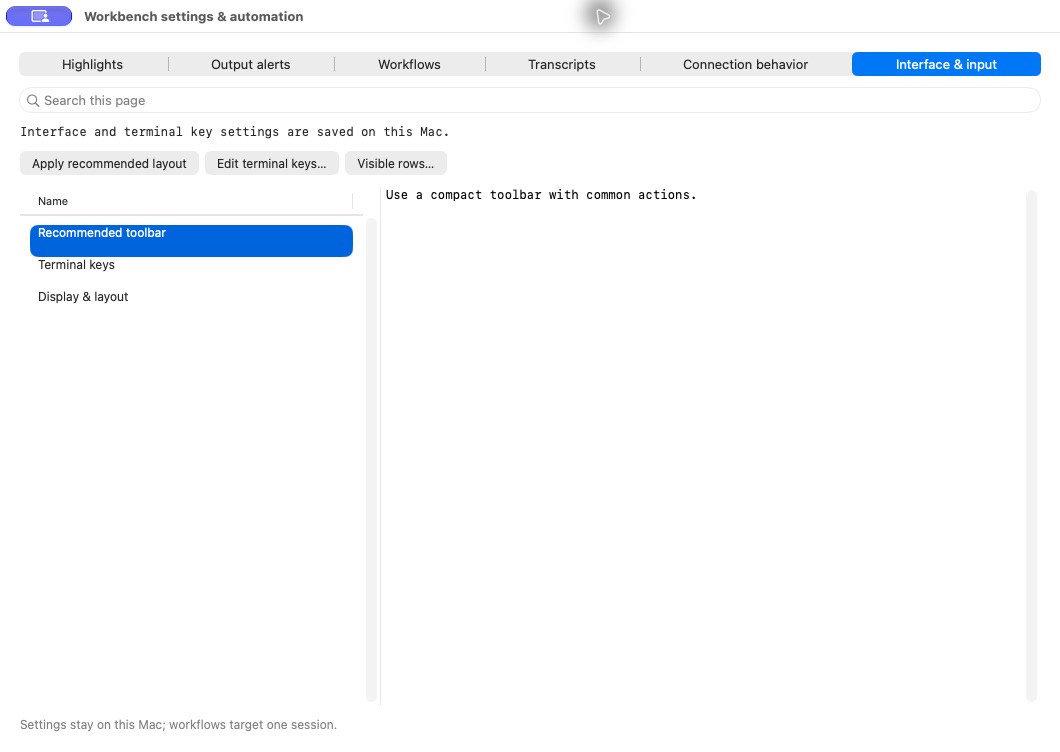
Workbench settings keep Highlights and Output alerts in separate tabs. This image shows where to find them; Interface & input is the selected tab.
A small, useful configuration
Use search to understand the current issue. Turn genuinely useful patterns into highlights. Enable alerts only for patterns that justify an interruption. Give each rule a descriptive name, but keep secrets out of that name because it may appear in a system notification.
This guide follows the official description reviewed against installed v0.2.96. It explains the tools and their limits, not a guarantee that every pattern or operational failure will be detected.
Read more: terminal find and highlights and output alerts.